

Create a New Account with Computershare
If your offering has been set up to maintain shares electronically on ComputerShare, you may access your claims online. If you do not already have a Computershare account, please create one following the steps in this guide:
If you want to download a more comprehensive user's manual for ComputerShare, Click here
1) Before you begin, be sure to have these items ready and accessible.
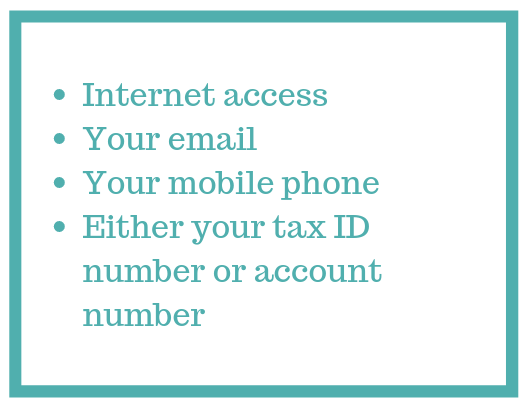
2) Please note, if at any time you need assistance with logging into Investor Center beyond this guide, please get in touch with the Call Center:
.png)
3) To log in to Investor Center for the first time, please go to www.computershare.com/investor. Once you see this screen, be sure to select the second option: "CREATE LOG IN."
.png)
4) CONFIRM YOUR STOCK - Fill in the required validation information.
"Insitu Biologics Inc." is used as an example company name. Please type the name of the company that you own stock in.
.png)
5) REGISTRATION- Please provide your information and set your login credentials.
(1).png)
6) VERIFY YOUR EMAIL - At this point, you will need to log into your email account and verify your email. Once you've completed that step, return to this screen and select "I HAVE CONFIRMED MY EMAIL" VERIFY YOUR EMAIL - At this point, you will need to log into your email account, and verify your email. Once you've completed that step, return to this screen and select "I HAVE CONFIRMED MY EMAIL."
.png)
7) Welcome to Investor Centre - At this point, you've successfully created an account with Computershare. Welcome to Investor Centre - At this point, you've successfully created an account with Computershare.
.png)
8) VERIFY YOUR IDENTITY - Computershare will need to confirm your identity to protect your account and info. You can choose to either log out at this point and wait for a verification code via mail, or if you'd like immediate access, you can select "VERIFY IDENTITY ONLINE" and follow the prompts to verify your identity. VERIFY YOUR IDENTITY - Computershare will need to confirm your identity to protect your account and info. You can choose to either log out at this point and wait for a verification code via mail, or if you'd like immediate access, you can select "VERIFY IDENTITY ONLINE" and follow the prompts to verify your identity.
.png)
9) That's it! Please note that If you did not choose to verify online or were not eligible, you would need to return to the website and enter the access code provided once you receive it in the mail. If you still need assistance, please call the call center at the numbers listed at the start of this guide.
.png)